Free Vector Road Signs (Glossy or Plain)
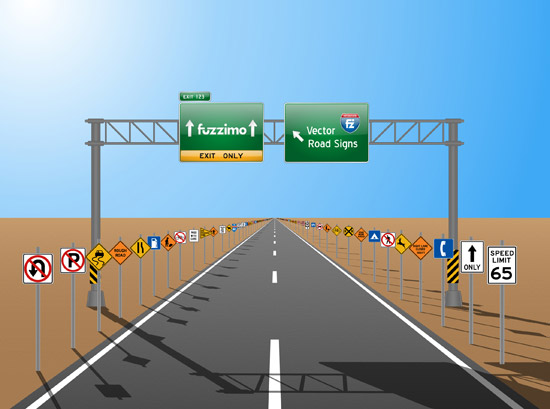
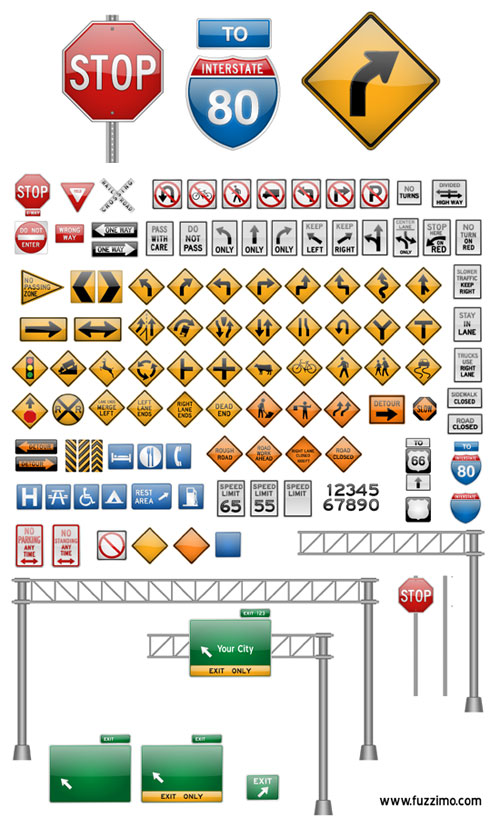
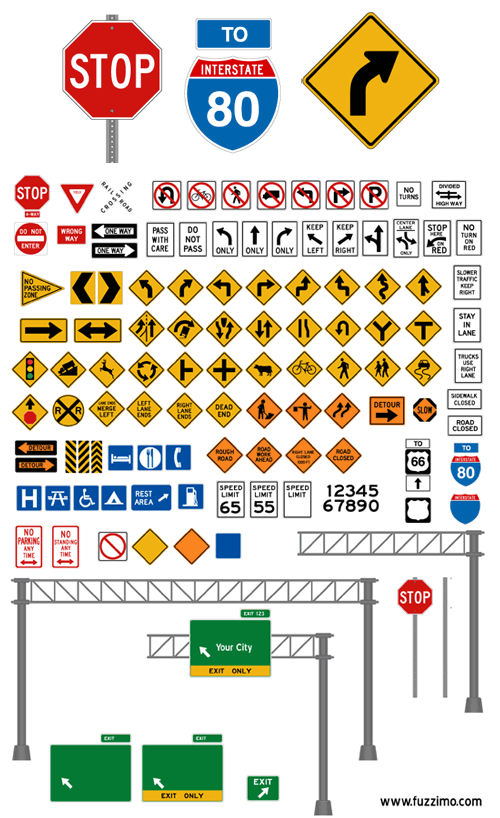
So this week I have some cool traffic and road signs for your “traphic” design needs :). There are about 100 vector signs; some basic ones as stop sign, do not enter, one way, no turns, speed limit, highway and interstate signs etc and also warning signs for curves, intersections, pedestrians and road work. I also made a pole so you can drop any sign on it and have the whole thing, and my favorites, the highway overheads so you can make some fun stuff as the image above. Sorry shadows not included :). These vectors can be used for your personal or commercial projects.
NEW – I added the vector file with the road (the above image) to the download section.
Version 1
Version 2
Download CS4 version 1 GLOSSY vector pack (ai, eps) (zip file 14.4mb)
Download CS4 version 2 PLAIN vector pack (ai, eps) (zip file 1.3mb)
Download CS3 versions
CS3 version 1 GLOSSY (ai, eps) (zip file 11.3mb)
CS3 version 2 PLAIN (ai, eps) (zip file 1.3mb)
Download Vector Road (post image) – (ai) (zip file 5.3mb)

Illustrator is not letting me ungroup these great vectors, how can I use them?!
@Lauren
Are you using Illustrator CS3? In any case I added CS3 versions to the download section above. Let me know how that works for you.
Awesome.. thanks a lot…. grettings from colombia…
Thank you SO much for these! As a beginning designer, I appreciate all the help I can get!
thank you too!!!!!
Thank you too love you!!
OMG these are amazing… you are so talented, thanks very much for sharing with the rest of us beginners!
great…thank you very much!!
thank you so much …great stuff !
plus i love your website design amazing texture and design ….the idea is simple but the way you put them together in such a fun way make it amazing.
thank you… great stuff !!!
unbelievable – I am having so much fun with these goodies, this makes scrapbooking even more fun!!
Nice work, thanks!
Wow!
Thank you so much, you have made my life infinitely easier!!!
Thank you for making this available! very nice!
thank you so much ^^
Thanks! so much. its all great!
Hello,
Thx for the vectors. Can I use them without any worries about Copyright? Or should I ask for your permission?
Hi Zoubeir,
The downloads from the “free stuff” are not copyright free. However they can be used freely as tools/elements for your original designs (personal or commercial). Here is a link to my terms of use. Feel free to contact me if you have any other questions.
Great time-saving resource! Thanks!
I need to make a highway 34 sign instead of 66, do you have the vectors for all the numbers in the font that ’66’ is in?
I think that was Helvetica bold – you can also use this very similar font here. Hope that helps!
Thanks! They’ll be very useful for my next projects.
I have to do a lot of map work and aerial labeling. These are excellent! Thanks.
These are great and just what I needed! Thanks for sharing!
This is super!!!
i,m very pleased that you share these vectors thank you.
Thanks man!!! saved my project…
These are just incredibly gorgeous! I’ve never seen better ones. All the work required to make these and generosity to share them are very much appreciated!
beautifuly designed! thanks so much!!
Hi there Antoniu, great website and great job on the road signs. It’s just what I was looking for. I’m somewhat of a noob when it comes to AI. Question. How do I change interstate sign text from 80 to 87? I went into the layer and drilled down the section where you have the differents appearances for the “8” and “0” but how do I change it to another number? I have been searching all over on how to do that but couldn’t find an answer. Figured I’d ask you. It’s probably something so simple that I’ll feel like an idiot when you tell me, haha! Thanks in advance for your help!
Thanks! That 80 is outlined text, so you cannot change it. You have to delete it and then grab the Type Tool (T) and type 87. The font used is Helvetica Bold, but Arial Bold works as well.
These are awesome! I don’t suppose there is a way to open them in CS2? I know, I know…I’m behind.
Hi Lindsey
I’ll email you a CS2 version.
Pretty hot, many thx!
Thank you for the well done illustrator work. I used the interstate marker signs for a map I’m working on to save time.
Muchísimas gracias, me serán de mucha utilidad en un proyecto que estoy realizando.
Saludos!
thanks
Thanks for the illustrator…use your element for my school project…
Thank you for these vectors!!! Excellent quality!
Is there a way to open these without illustrator.. these would be perfect for my sons birthday invitation but can not open them in any which way?
I’ll email you images.
Great art work, easy to use, saved me a bunch of work. I’ll be glad to upload any images I’ve created for you or others to use if you’ll let me know how to do it.
Thank you for the offer Don! At the moment I don’t have a section for resources from other designers – maybe I’ll make one in the future.
VERY NICE AND USEFULL – THANKS A LOT :-)
RIKKE, ATYPISK.DK
How do i open them in Illustrator
Hi Zack,
After you unzip the downloads, you should be able to open the ai or eps in Illutrator. What version of Illustrator are you using?
Thanks man, legend
You are so gosh-darned AMAZING!!!!! THANK YOU!!! :D
Great work on the signs!!
Thank you so much for all your awesome work.
Pinterest won’t work, can’t find pictures on your site, was trying to share.
You are awesome, thank you! Saved me loads of time!!!!
For those who are still looking for a font, use blue highway.